EI-Simplify v3 — Complete 20-Chapter User Manual
Master every screen across the 6 Consolidated Workspaces, 12 Role-Based Portals, Universal Progressive Drill-Down with Zero-Variance Reconciliation, Direct A4 PDF Print Preview, and DPDP Act 2023 + Rules 2025 governance.
Ctrl + KGlobal Search
F2 / F3Year / Branch Scope
Alt + PDirect A4 PDF Preview
Alt + EScoped Excel Export
EscDrill-Down Back
Chapter 01
Getting Started
Welcome, System Requirements & 12 Role-Based Logins
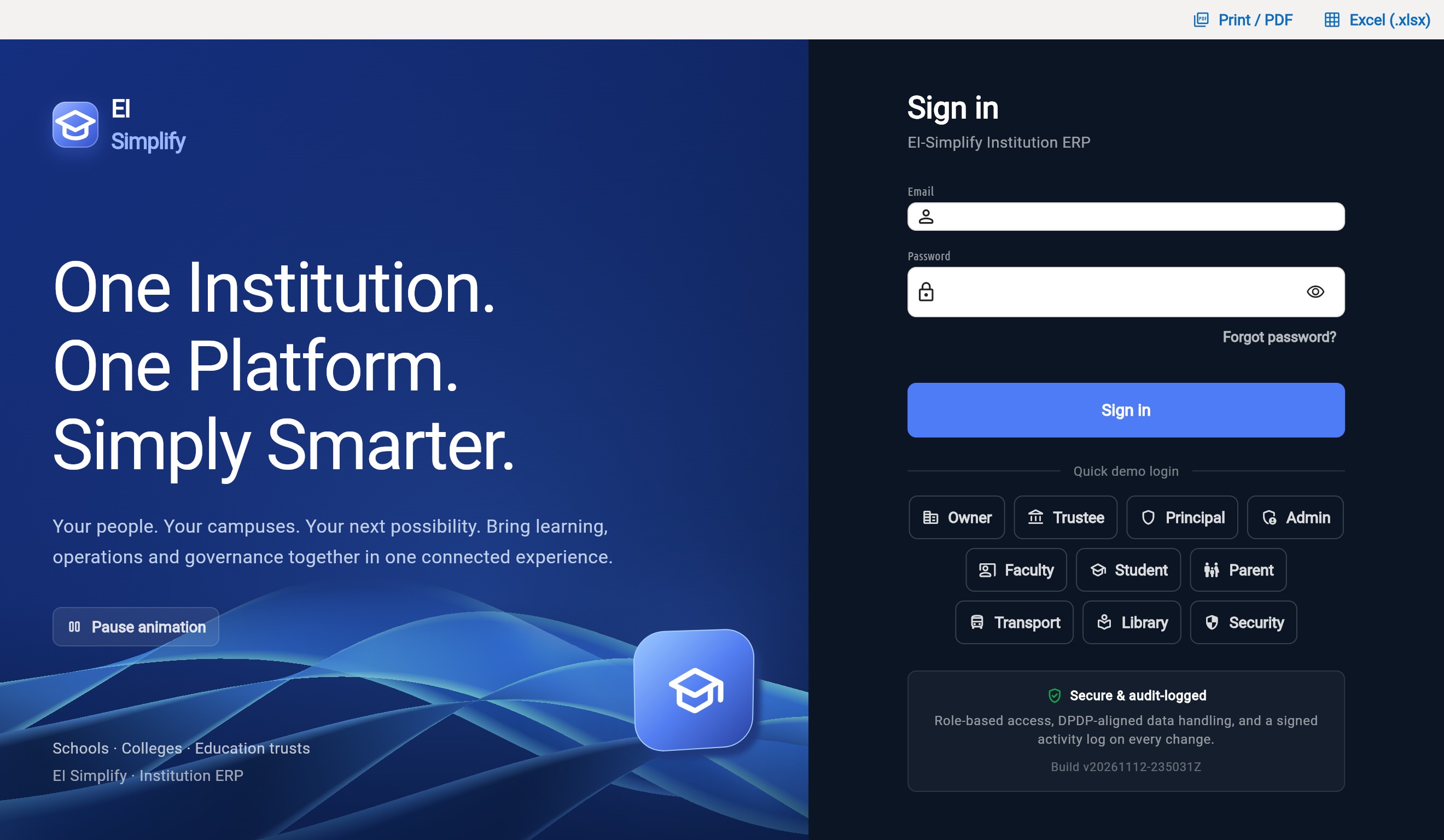
Sign in cleanly on Web or Native Android v3.0 across any of the twelve least-privilege institutional portals.
Step-by-Step Operating Procedure
- Open https://eisimplify.com/app/ in Chrome, Edge, Firefox, or Safari, or launch the EI-Simplify v3 Android app.
- Enter your institutional email or login ID and password (or select any seeded role on the demo sandbox).
- If your administrator enabled Two-Factor Authentication (TOTP MFA), enter the 6-digit authenticator code.
- EI-Simplify loads your role's tailored workspace: Principal, Trust Owner, Trustee, Admin, HOD, Accountant, Faculty, Student, Parent, Transport, Librarian, or Gate Security.
Operator Tip: Sessions enforce strict tenant and campus isolation on both the UI and every Go API request.
Screen Reference · Ch 01
Chapter 02
Getting Started
Navigating the Six Consolidated Workspaces & Top Command Bar
Every module sits predictably inside six left-rail workspaces in our high-clarity Office Light skin with Ubuntu Condensed typography.
Step-by-Step Operating Procedure
- Use the Left Workspace Rail to open: (1) Command Centre, (2) Academics, (3) People & 360, (4) Finance & Payroll, (5) Campus Operations, or (6) Governance & DPDP.
- Open multiple screens simultaneously as top workspace tabs to compare attendance, fees, or timetables side-by-side.
- Click the Shield icon next to the notification bell in the top bar anytime to open your DPDP Privacy Desk or Institution Compliance Suite.
- Press Ctrl+K from anywhere in the application to jump straight to any screen, student, teacher, invoice, or voucher.
Operator Tip: Collapse the left rail with the sidebar toggle whenever you want extra horizontal width for financial or timetable grids.
Screen Reference · Ch 02
Chapter 03
Getting Started
Keyboard-First Speed Reference & Grid Controls
Operate daily front-office, registrar, and accounting desks rapidly without lifting your hands from the keyboard.
Step-by-Step Operating Procedure
- Ctrl+K — Global Command Search across screens, learners, staff, and voucher numbers.
- F2 — Switch active Academic Period / Year (keeps your open screen refreshed to that period).
- F3 — Switch Campus Scope between a single school/college or Trust-wide consolidation.
- Alt+P — Open Instant Direct A4 PDF Print Preview for the active screen; Alt+E — Export Excel (.xlsx) Workbook.
- Esc — Step one level back out of any Progressive Drill-Down, modal dialog, or search overlay.
Operator Tip: Inside tabular registers, use Up/Down arrows and PageUp/PageDown for fast row scanning and Enter to open the underlying detail record.
Screen Reference · Ch 03
Chapter 04
Core v3 Superpowers
Universal Progressive Drill-Down & Zero-Variance Reconciliation Seal
Click any number, summary card, chart bar, or table total anywhere in EI-Simplify to inspect the breakdown down to the source voucher.
Step-by-Step Operating Procedure
- Click any KPI metric card, table total, or chart bar on any dashboard or financial report.
- Examine the next breakdown tier (for example: Total Revenue -> By Category -> By Class/Customer -> By Month -> Individual Vouchers).
- Verify the live green Reconciliation Seal banner confirming that Parent Total == Sum of Child Rows (Variance: 0).
- Continue clicking through until the lowest-level original student receipt, fee invoice, or journal voucher opens, while active date and branch filters remain locked.
- Use the top breadcrumb bar to jump back to any earlier level or press Esc to return one step.
Operator Tip: You can print the current drill-down breakdown table cleanly at any depth directly into A4 PDF Preview.
Screen Reference · Ch 04
Chapter 05
Core v3 Superpowers
Direct PDF Print Preview (Alt+P) & Scoped Excel Exports (Alt+E)
All 132 authenticated screens and 7 public flows produce print-ready A4 PDFs directly inside the workspace.
Step-by-Step Operating Procedure
- Filter or group any table, ledger, marks sheet, or operational dashboard to the exact slice you want.
- Click Print / PDF in the top action bar or press Alt+P to launch the built-in A4 PDF Print Previewer.
- Use the viewer toolbar to zoom, jump pages, search student names or voucher IDs, download the PDF, or print cleanly.
- Need raw structured spreadsheets? Click Excel (.xlsx) or press Alt+E to download formatted multi-sheet workbooks.
Operator Tip: For privacy, cached PDF previews and Excel exports automatically invalidate immediately whenever you switch campus scope or sign out.
Screen Reference · Ch 05
Chapter 06
Workspace 01 · Command Centre
Campus Pulse, Live 15s Board, Executive Briefing & 4 Decision Hubs
Spot attendance dips, uncovered lectures, fee aging, and admissions bottlenecks live every morning.
Step-by-Step Operating Procedure
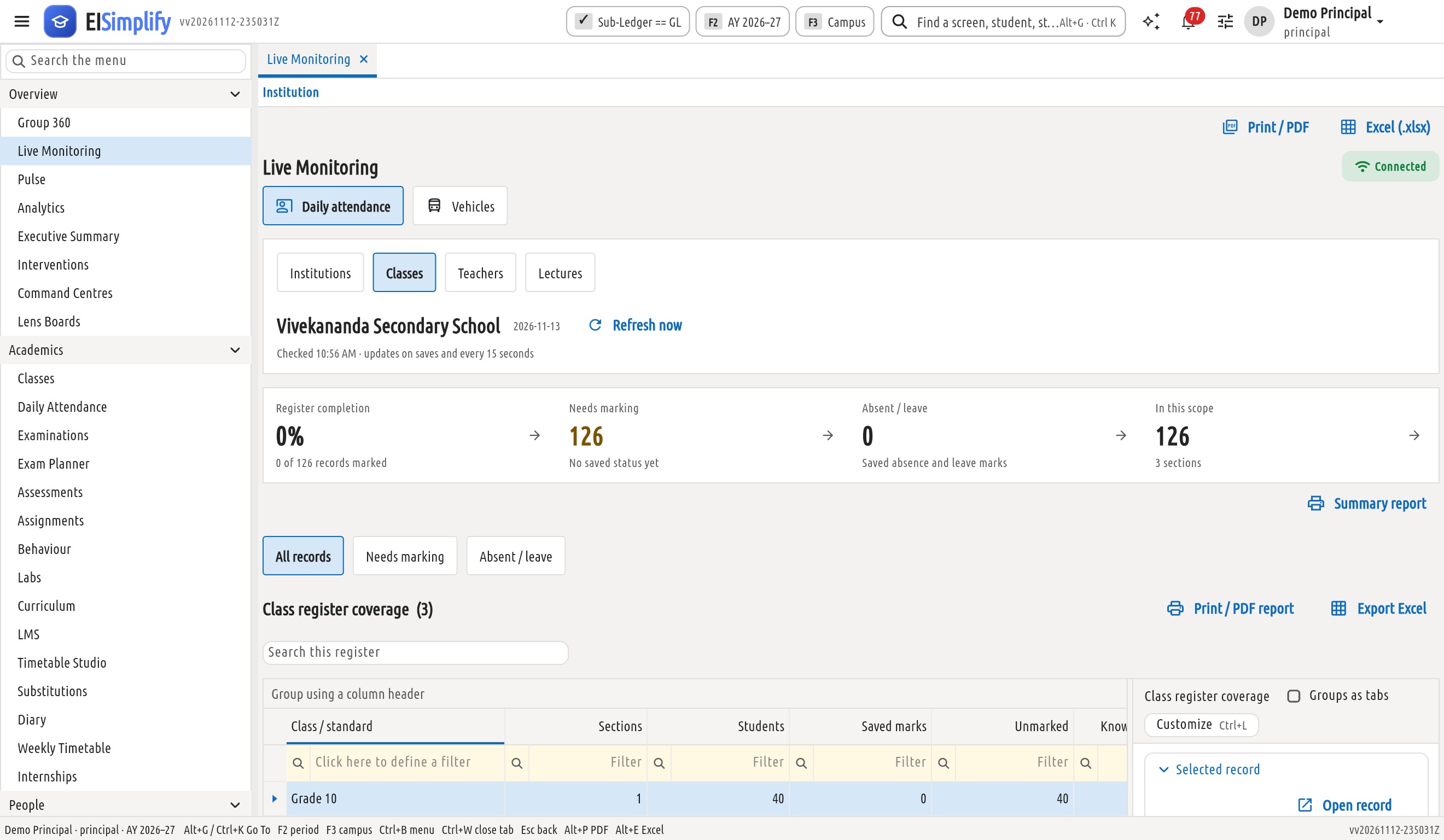
- Open Command Centre -> Campus Pulse for the morning snapshot of attendance, collections, active periods, and urgent exceptions.
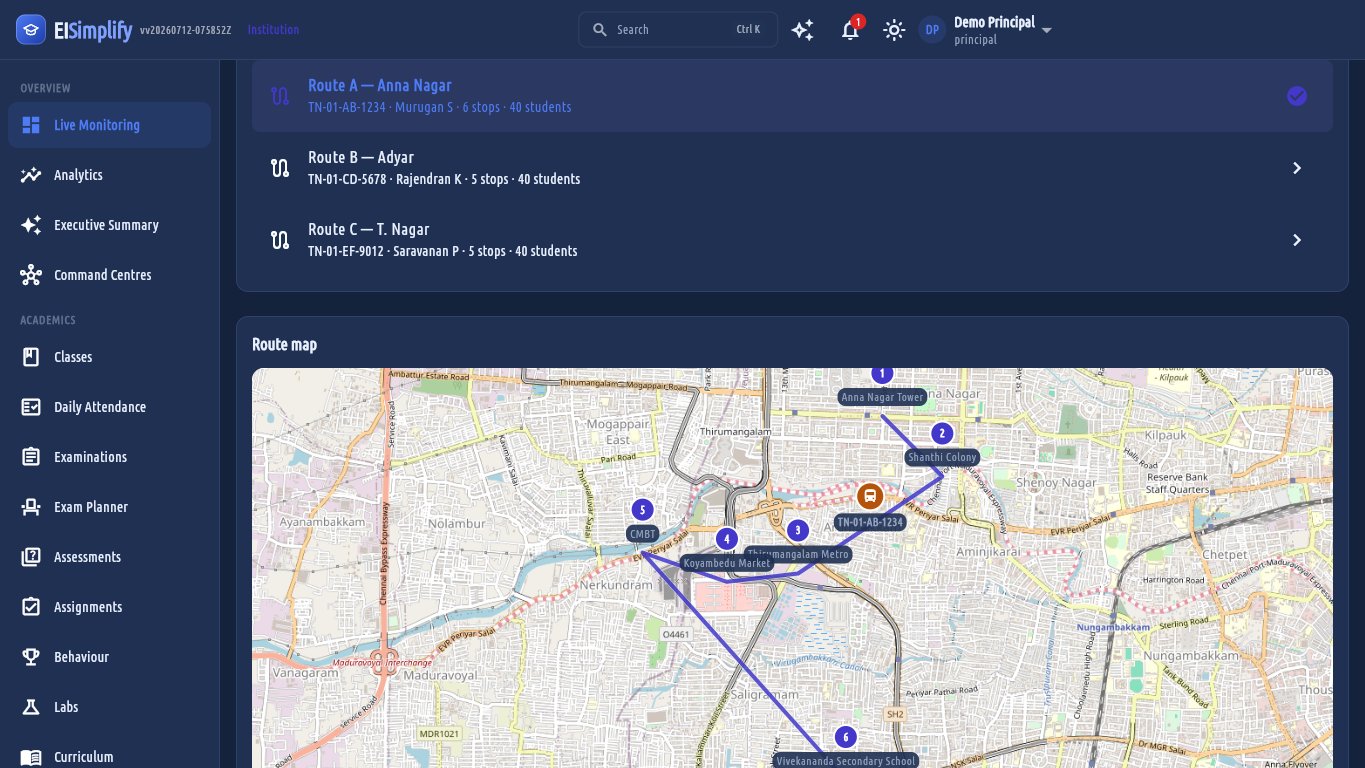
- Switch to Live Monitoring to follow period attendance completion and transport fleet GPS routes updating in 15-second ticks.
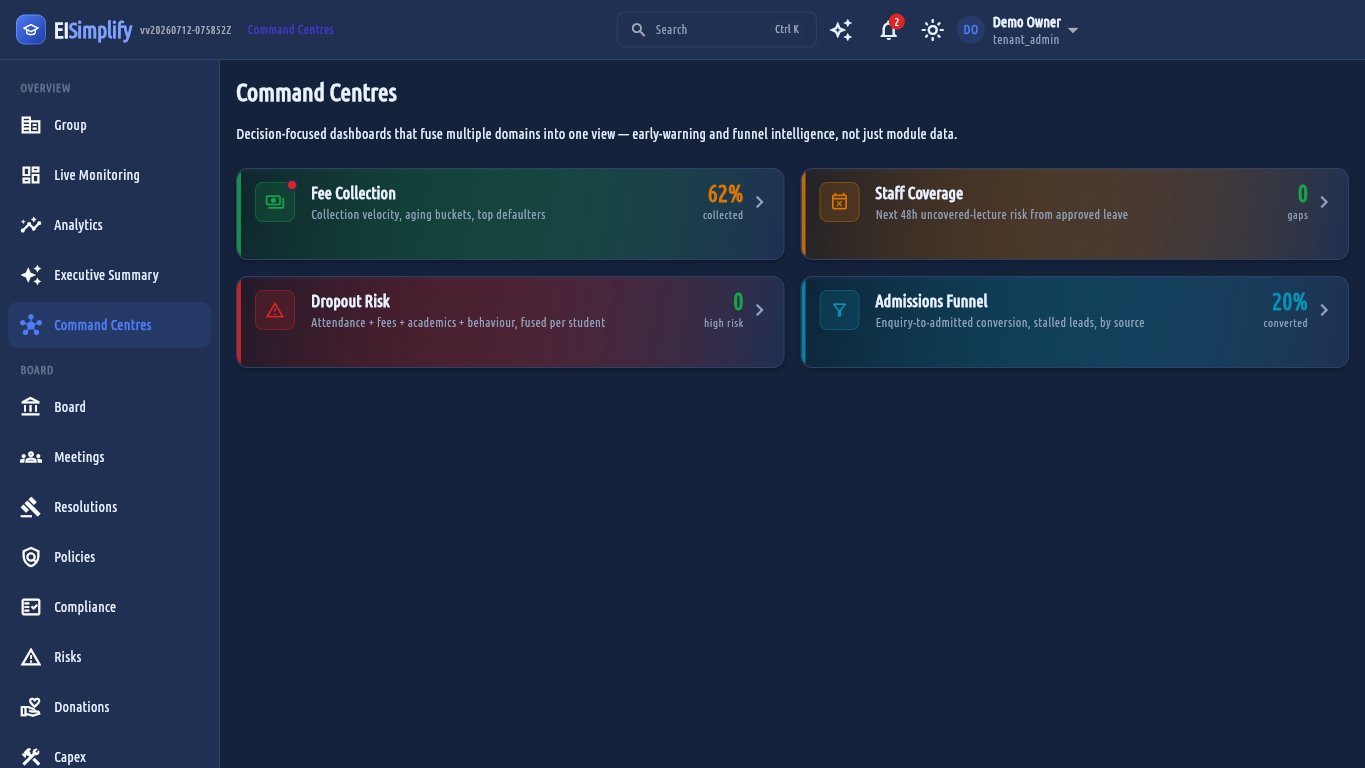
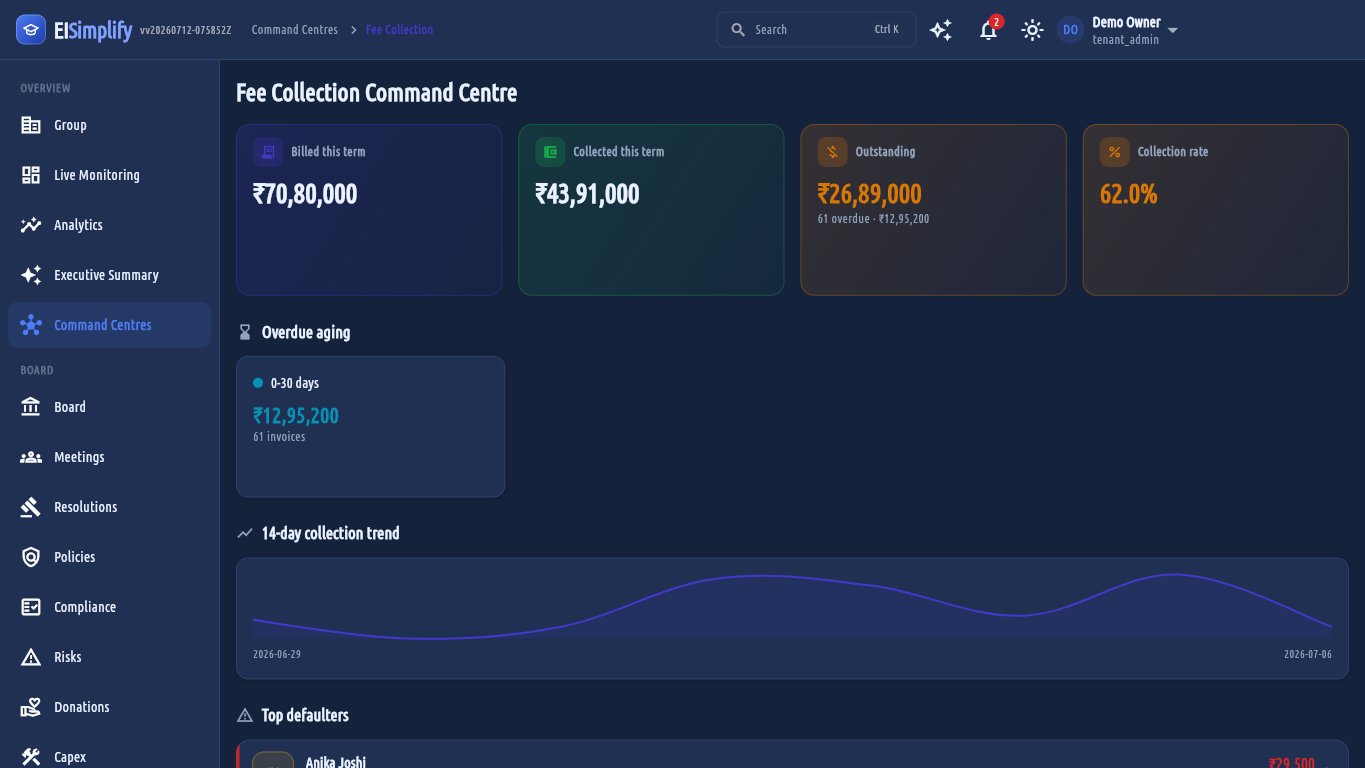
- Inspect the four Decision Command Centres: Fee Collection Velocity, Student Retention & Dropout Radar, 48-Hour Staff Substitution, and Admissions Conversion.
- Open Executive Summary for narrative AI-synthesised highlights prepared from your institution's live operational ledger.
Operator Tip: Click any warning badge inside Retention Radar to open the learner's Student 360° profile with attendance and arrears context.
Screen Reference · Ch 06
Chapter 07
Workspace 01 · Group Command
Multi-Campus Group Hub, Institutional Onboarding & Role Invitations
Scale effortlessly from one school to an education trust managing K-12, PU, and degree campuses.
Step-by-Step Operating Procedure
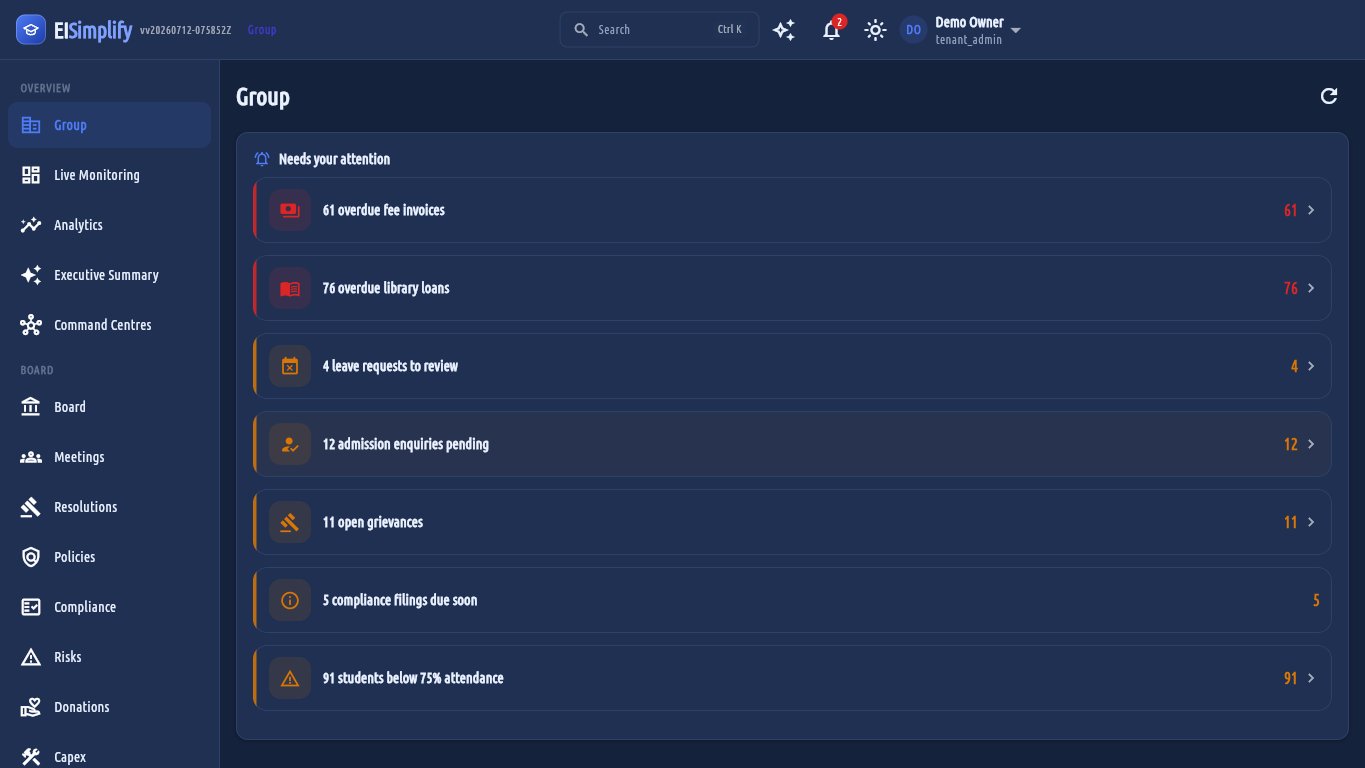
- Education trust owners open Group Command Overview to benchmark enrolments, attendance percentages, fee recovery, and staff ratios across all branches.
- Add new campuses via Group -> Institutions with independent boards, academic sessions, tax profiles, and letterheads.
- Issue secure expiring invitations under Group -> Invitations to onboard principals, accountants, and trustees with exact campus scopes.
- Use Group Finance to monitor monthly period locks and verify inter-campus consolidation health.
Operator Tip: Single-campus schools see a clean branch header; multi-campus trusts unlock cross-branch aggregation automatically via F3.
Screen Reference · Ch 07
Chapter 08
Workspace 02 · Academics
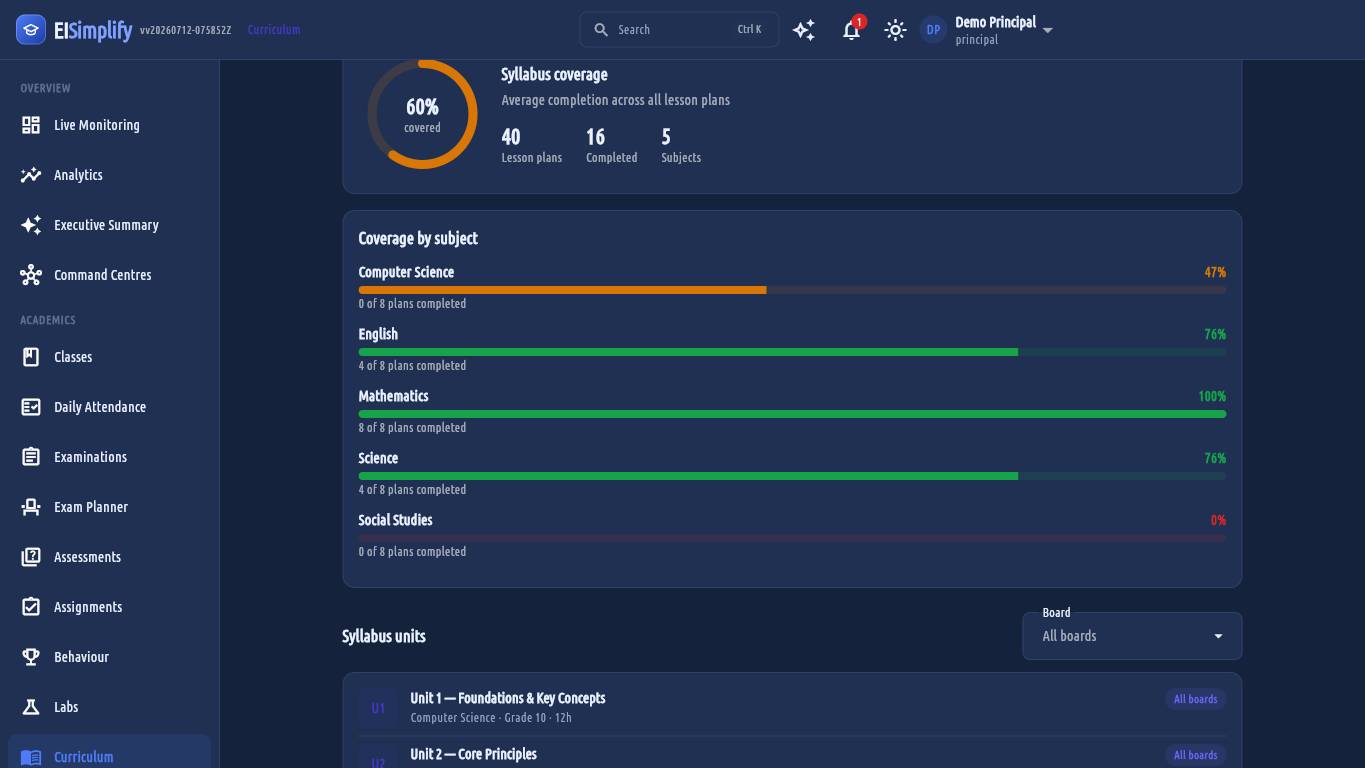
Board-Aware Curriculum (CBSE/ICSE/State), Timetables & Live Lectures
Configure official syllabi across all Indian boards and build conflict-free schedules in minutes.
Step-by-Step Operating Procedure
- Open Academics -> Curriculum to select your institution's affiliated board catalogue (CBSE, ICSE/ISC, or any of the 28 state / 8 UT boards).
- Map chapters, unit plans, teaching hours, and learning outcomes per subject and grade.
- Launch Timetable Studio to assign periods and rooms; built-in conflict guards prevent teacher double-booking or room over-allocation.
- Faculty start Live Lectures directly from their scheduled period slots to track syllabus completion cleanly.
Operator Tip: Substitute assignments from the 48-Hour Leave Forecast reflect immediately on the day's Timetable Studio grid.
Screen Reference · Ch 08
Chapter 09
Workspace 02 · Learning & Labs
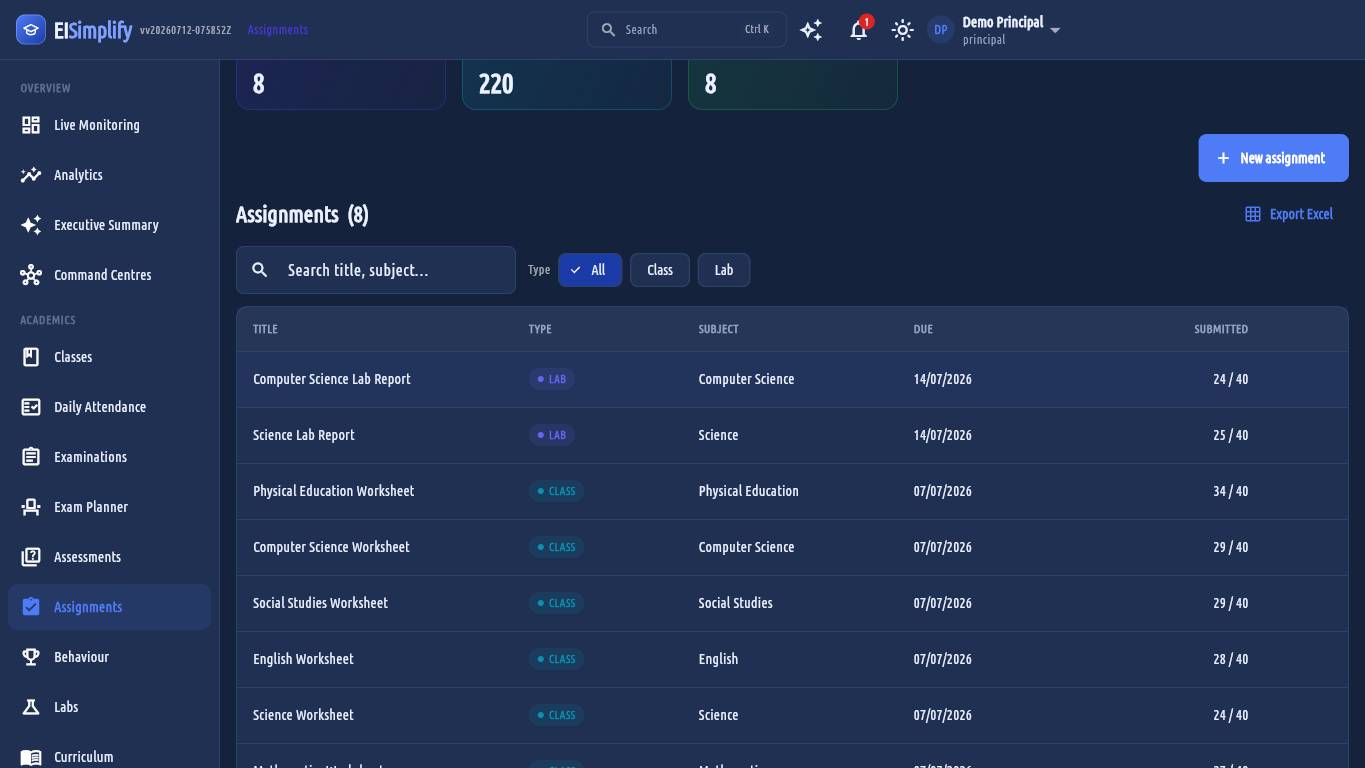
LMS Modules, Assignments, Online Assessments, Labs & Behaviour
Coordinate daily classroom instruction, lab rubrics, digital assignments, and learner pastoral logs.
Step-by-Step Operating Procedure
- Publish digital assignments, reading packs, and submission deadlines per section under Academics -> Assignments.
- Run timed quizzes and formative Assessments inside the LMS workspace with instant auto-scoring for objective items.
- Record laboratory practicals, viva scores, and equipment allocations in Labs.
- Log positive houses/merit commendations and pastoral behaviour interventions cleanly with guardian visibility controls.
Operator Tip: All assignment and quiz scores flow directly into Gradebook weightages when configured by the Examination Cell.
Screen Reference · Ch 09
Chapter 10
Workspace 02 · Examinations
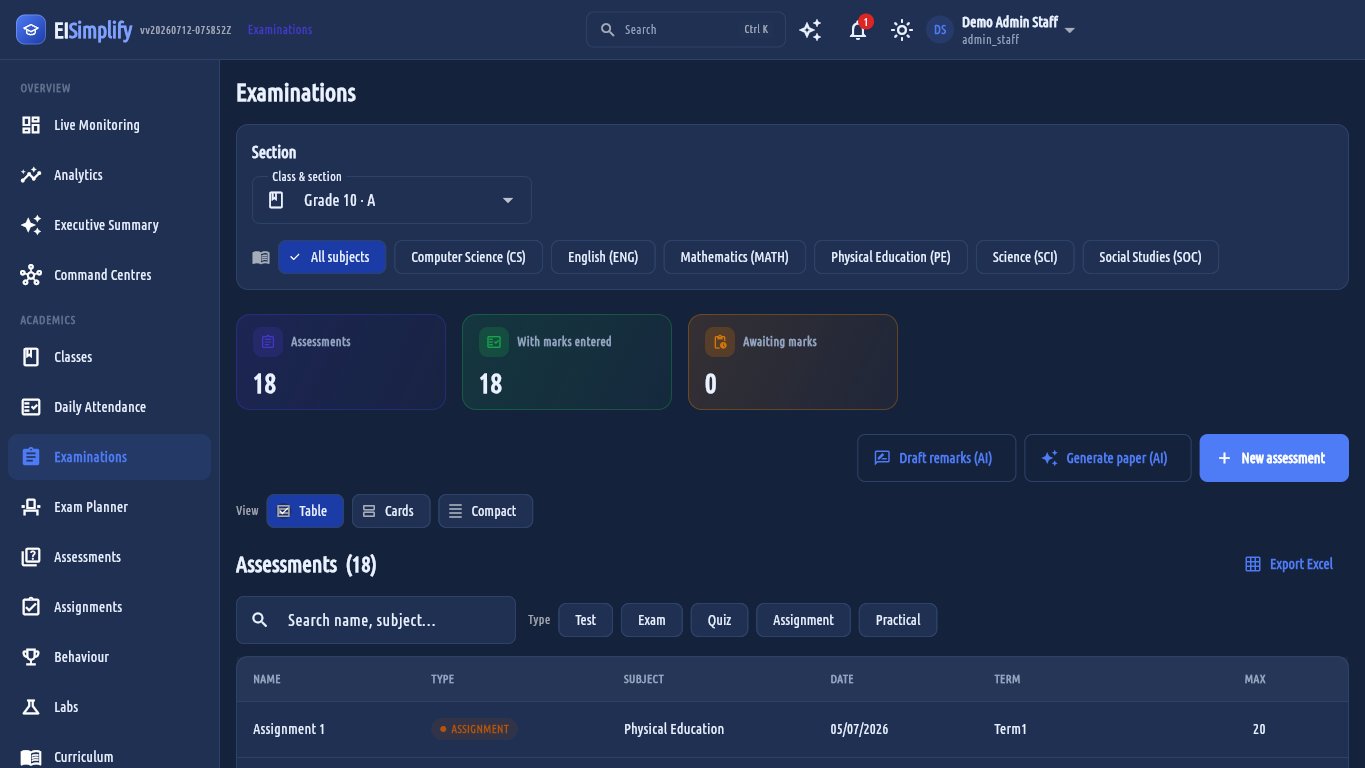
Examinations, Gradebook, CBCS Credits, Hall Tickets & QR Transcripts
Execute school report cards and college semester CBCS evaluations with QR verification.
Step-by-Step Operating Procedure
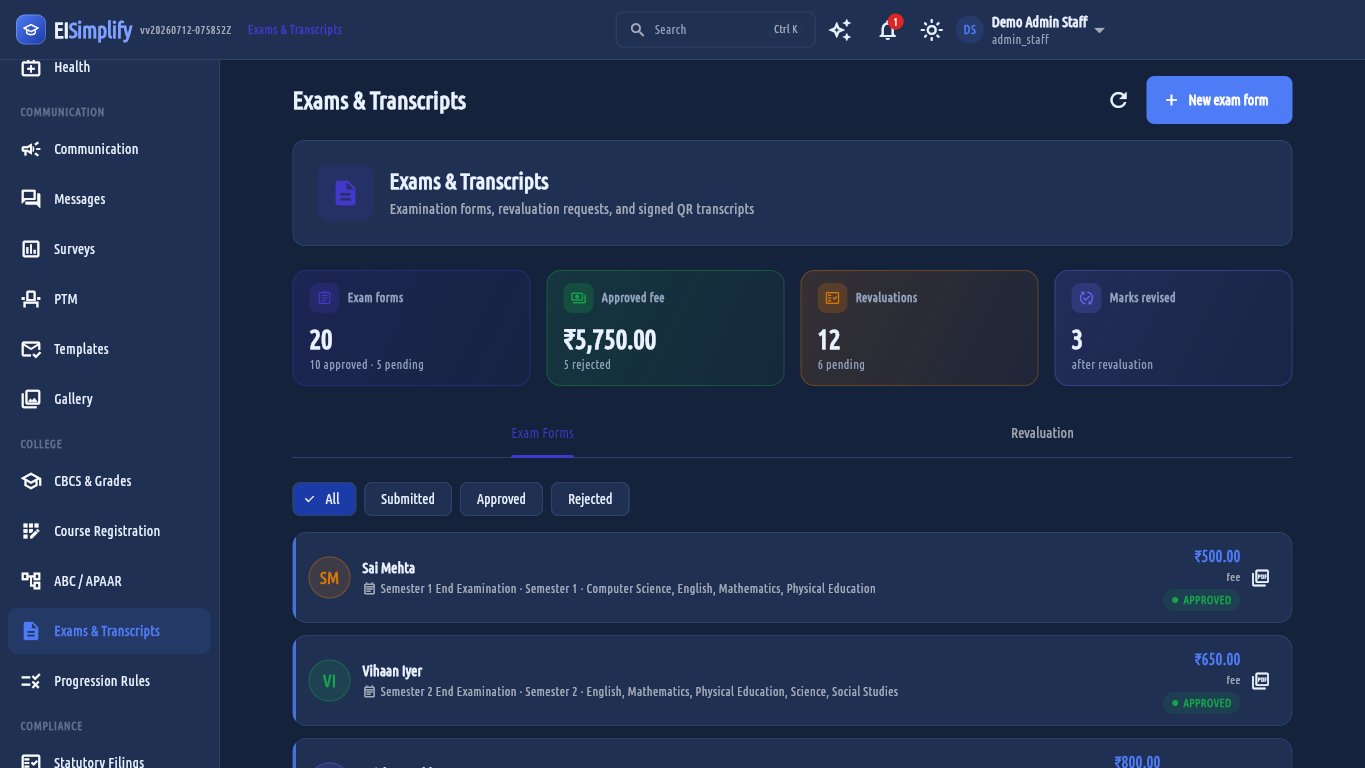
- Create assessment cycles in Examinations, assign rooms and invigilation duties, and print batch Hall Tickets.
- Enter or upload marks inside Gradebook with moderation workflows and automatic SGPA/CGPA computation under CBCS.
- Open Transcripts to inspect formatted marksheets in Direct A4 PDF Preview before releasing them to Student & Parent portals.
- Issue Bonafide, Transfer, Study, and Character Certificates carrying cryptographic QR verification codes.
Operator Tip: Every marks modification after publication records a locked audit entry showing the moderator, timestamp, and reason.
Screen Reference · Ch 10
Chapter 11
Workspace 03 · People & 360
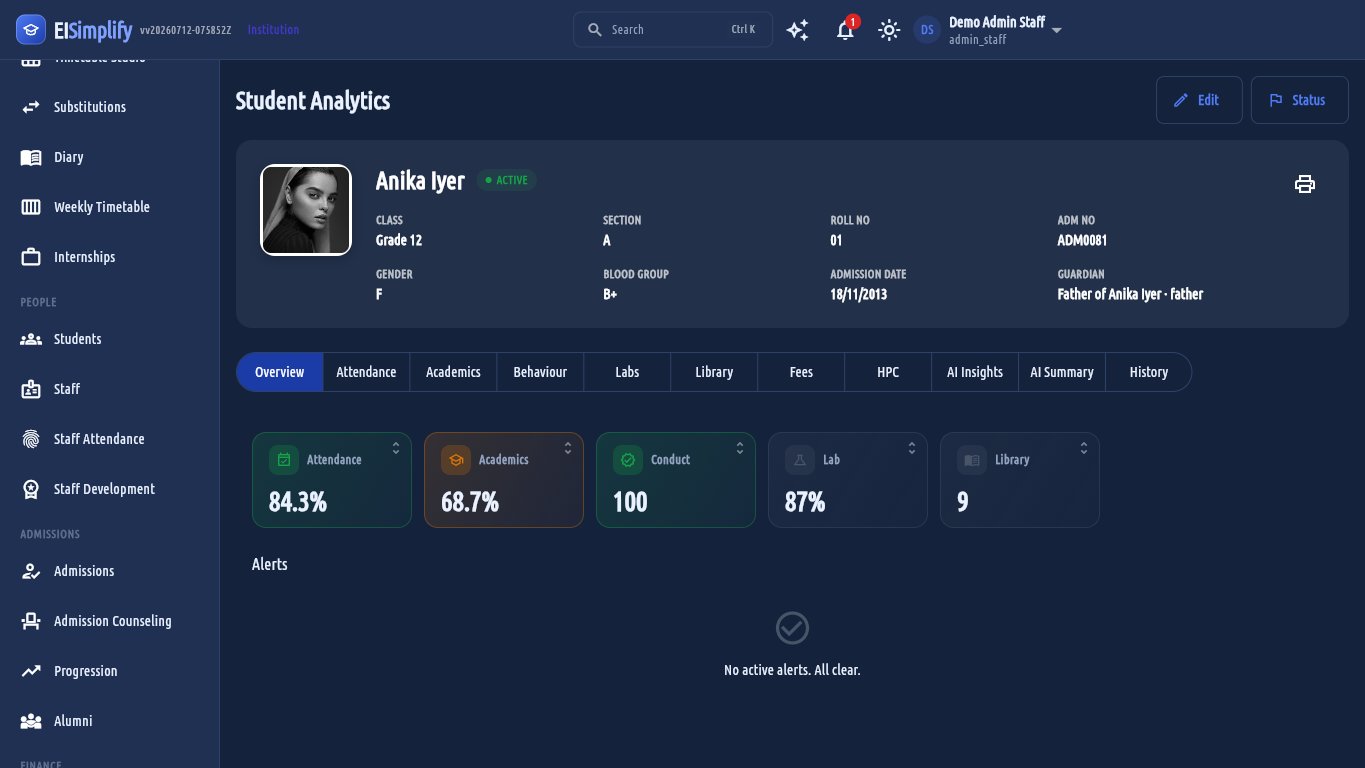
Student Master Directory, Student 360° Longitudinal Profile & Admissions CRM
Manage the entire student lifecycle from initial walk-in inquiry to alumni graduation.
Step-by-Step Operating Procedure
- Capture enquiries and entrance scores in Admissions CRM; use Admissions OCR to extract applicant fields quickly from IDs.
- Convert admitted applicants into enrolled learners in one click — automatically assigning roll numbers, houses, fee schedules, and parent logins.
- Open Student 360° on any learner to inspect attendance, exam marks, fee dues, guardian contacts, APAAR/ABC IDs, health notes, and DPDP consent shields.
- Bulk filter and group students inside Student Master Directory and export or print custom rosters with Alt+P / Alt+E.
Operator Tip: Look for the Section 9 Minor Consent Shield banner at the top of Student 360° profiles for learners under 18.
Screen Reference · Ch 11
Chapter 12
Workspace 03 · Faculty & HR
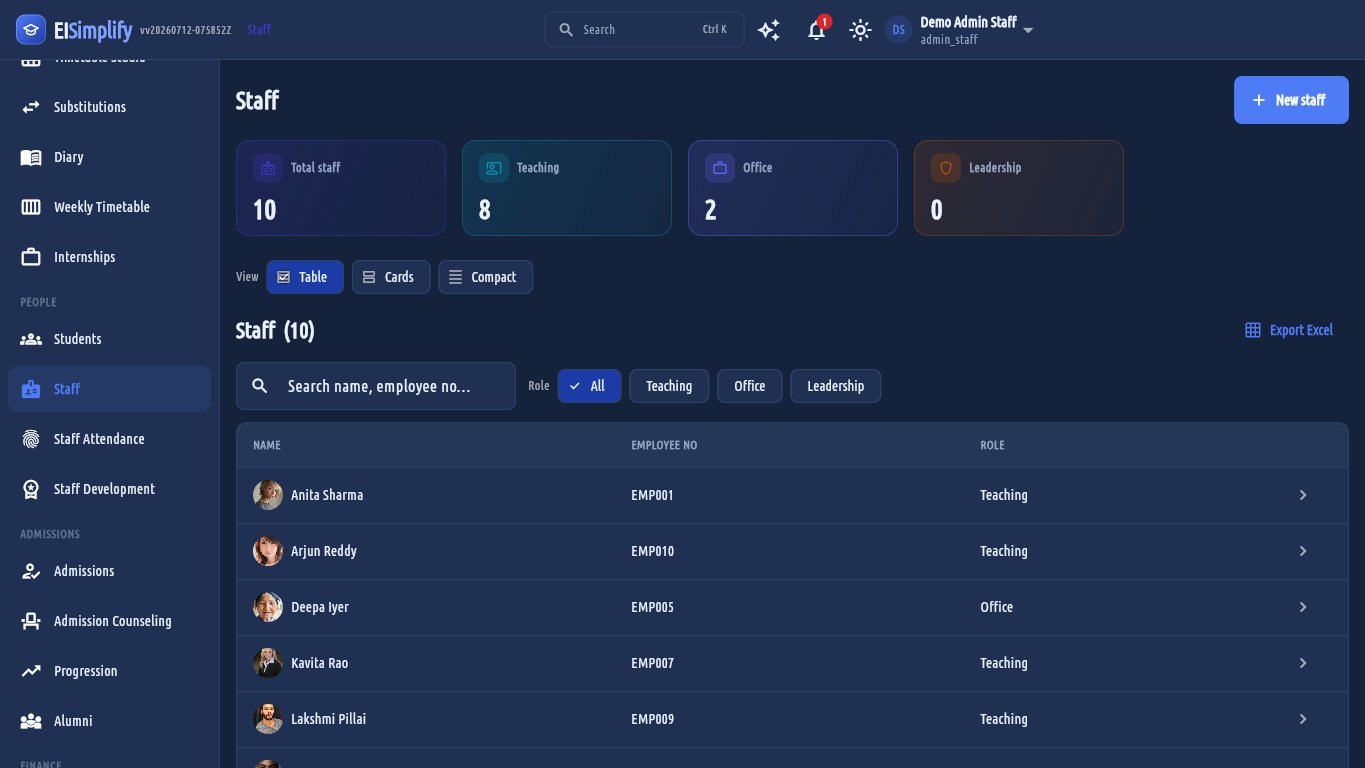
Staff Directory, Service HR Records, Leave Workflows & Alumni
Centralise faculty credentials, leave approvals, automatic coverage, and lifelong alumni engagement.
Step-by-Step Operating Procedure
- Maintain complete teaching and non-teaching credentials, PAN, bank accounts (masked in UI), and subject qualifications under Staff Directory.
- Track CL, SL, and EL leave balances; staff apply directly via web or Android and principals approve in one tap.
- Check Staff Coverage Radar whenever leaves are approved so uncovered classes receive substitutes immediately.
- Engage former students through the Alumni Directory for mentorship sessions and endowment drives.
Operator Tip: Approved leave counts sync directly with monthly Payroll attendance deductions when applicable.
Screen Reference · Ch 12
Chapter 13
Workspace 04 · Finance
Fee Structures, Invoicing, Online Payments, Aging & NSP Concessions
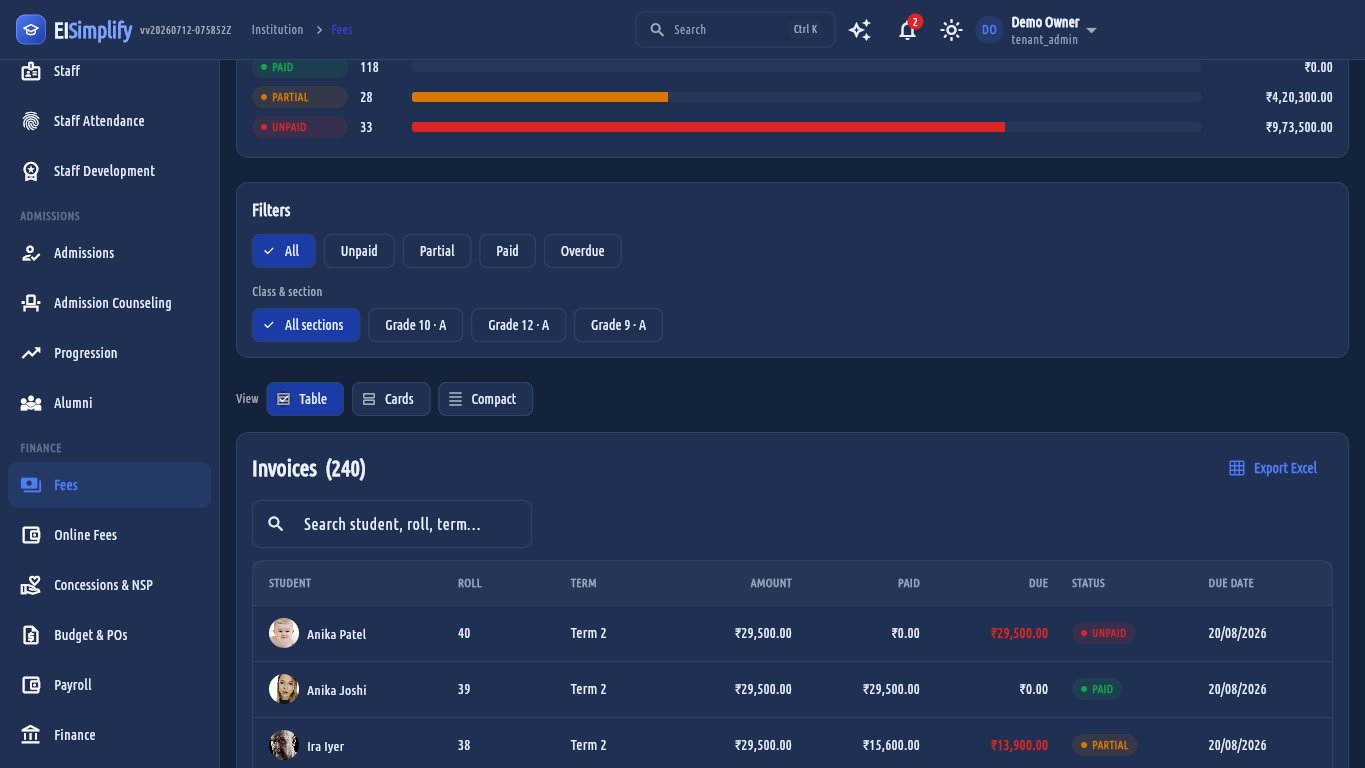
Collect tuition, bus, and hostel fees cleanly with instant receipts and drill-down aging follow-up.
Step-by-Step Operating Procedure
- Define class-wise fee heads, term due dates, and late-fee rules under Finance -> Fees.
- Generate bulk term invoices and enable parents to pay online directly inside the web or Android portal with instant receipts.
- Record counter cash, cheque, UPI, or NEFT settlements manually when received at the school office.
- Manage sibling discounts, merit waivers, and NSP/government scholarship concessions with rule-based approvals.
Operator Tip: Click any overdue bucket bar in Fee Velocity to list the exact pending students and dispatch reminders.
Screen Reference · Ch 13
Chapter 14
Workspace 04 · Accounting & Payroll
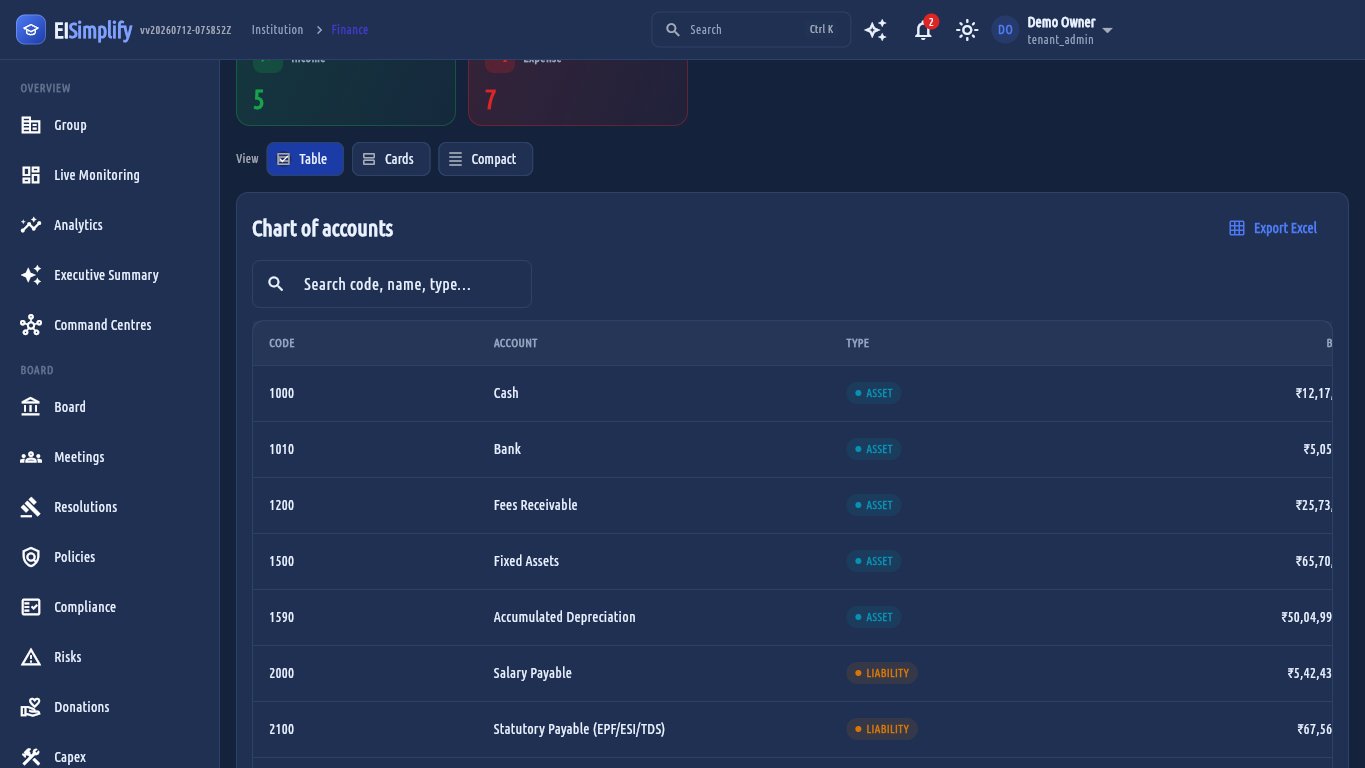
Double-Entry General Ledger, Trial Balance, Budgets, POs & Payroll
Keep books audit-ready year-round with zero-variance control reconciliation and monthly period locks.
Step-by-Step Operating Procedure
- Monitor automated double-entry postings triggered in real time by every fee receipt, refund, vendor bill, and payroll run.
- Review Trial Balance, Income & Expenditure, and Cash/Bank Books; click any group or account to drill straight down to vouchers.
- Enforce departmental spending limits using Budgets & Purchase Orders before vendor disbursements.
- Run Payroll each month to compute basic, allowances, PF, ESI, PT, TDS, bank advice files, and printable A4 payslips.
Operator Tip: Close financial months securely with Fiscal Period Locks to prevent accidental backdated entries prior to statutory audit.
Screen Reference · Ch 14
Chapter 15
Workspace 05 · Campus Operations
GPS Fleet Tracking, Hostel, Barcode Library, Inventory, Canteen & Gate Kiosk
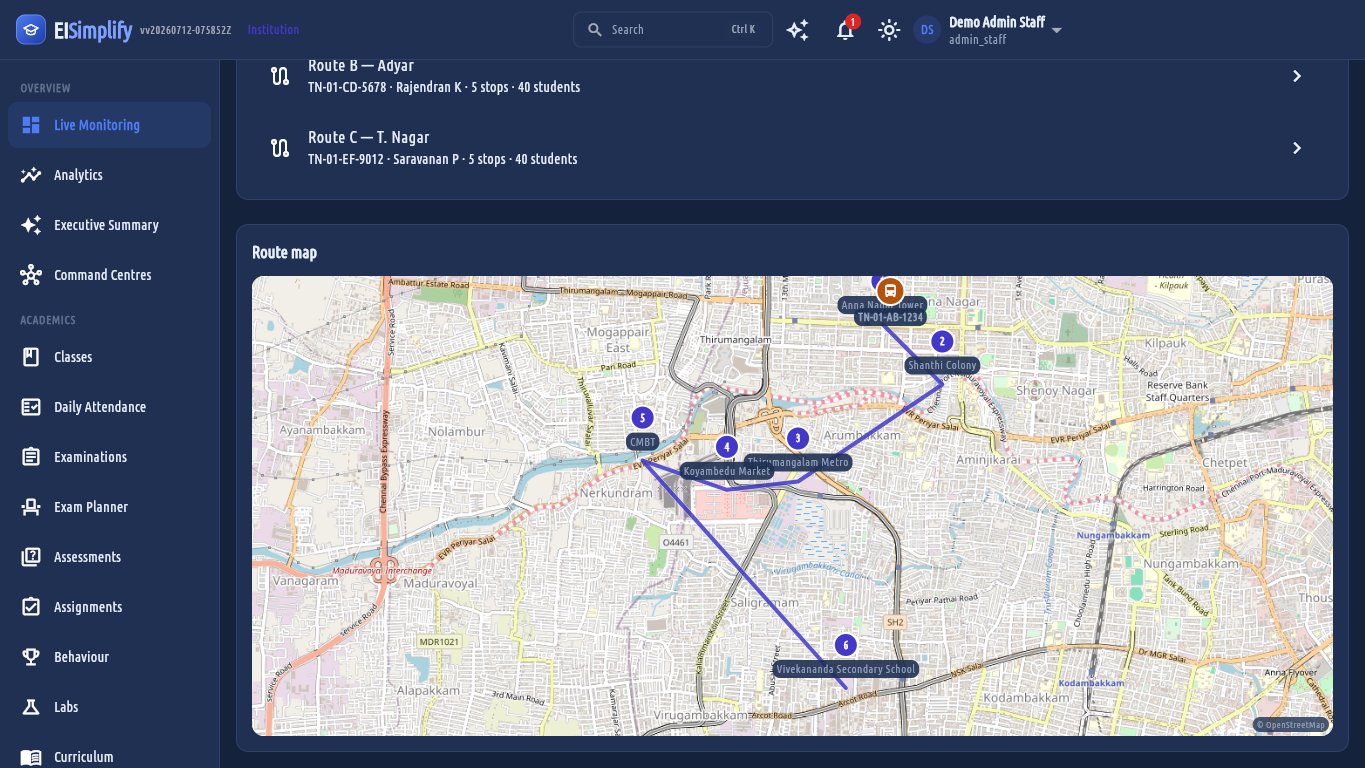
Run physical campus operations live using OpenStreetMap routes, RFID/barcode workflows, and gate security.
Step-by-Step Operating Procedure
- Monitor live bus locations, stops, pickup geofences, and driver logs on keyless OpenStreetMap tiles under Transport.
- Issue and return books in seconds using barcode scan codes in Library Circulation and manage fine settlements.
- Assign hostel buildings, rooms, beds, mess plans, and warden check-ins under Hostel & Assets/Inventory.
- Operate cashless Canteen Wallets and biometric-capable Gate Kiosk visitor/student passes for campus safety.
Operator Tip: Security personnel logging in with the Security role land directly on the streamlined Gate Kiosk interface.
Screen Reference · Ch 15
Chapter 16
Workspace 05 · Communication
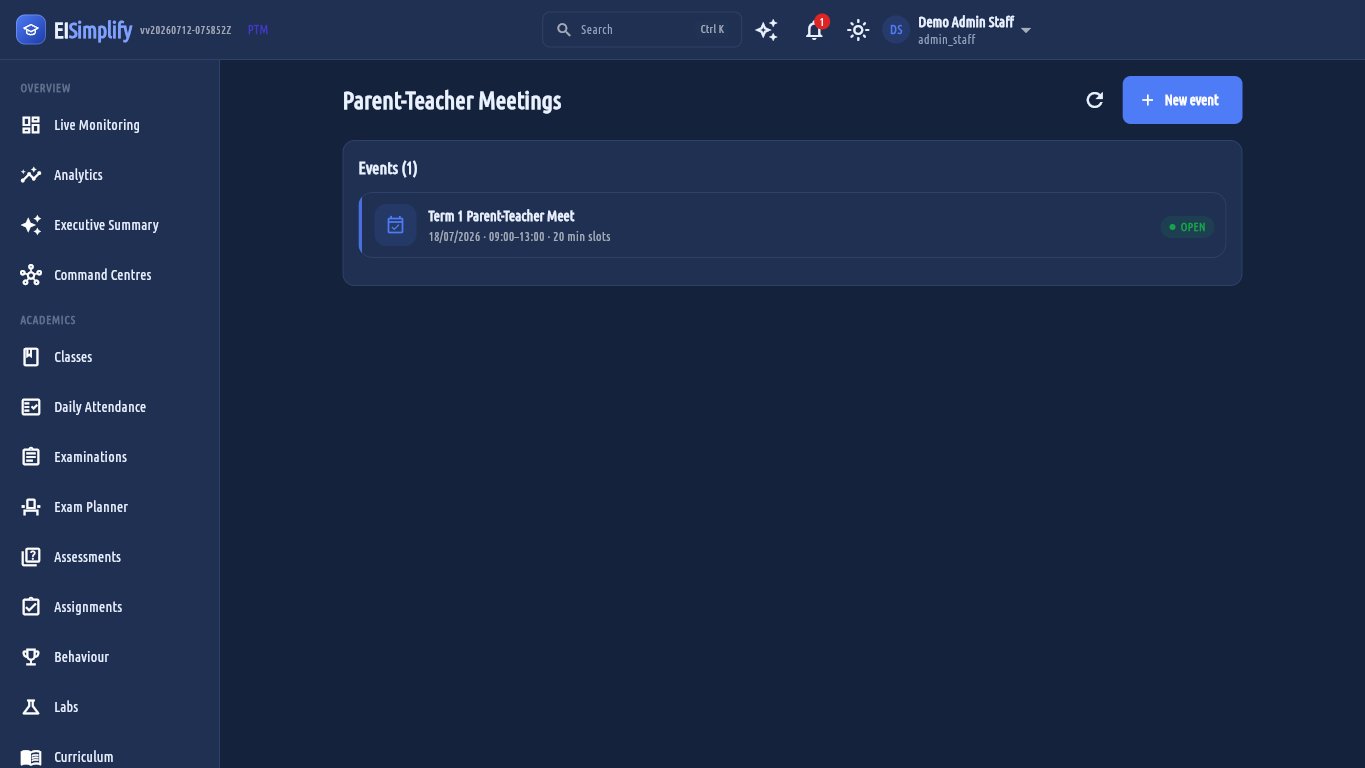
Announcements, Homework Diary, Academic Calendar, PTM & Surveys
Replace ad-hoc messaging groups with auditable, acknowledged institutional communication.
Step-by-Step Operating Procedure
- Publish targeted circulars and event invitations to specific grades, sections, routes, or all staff via Announcements & Gallery.
- Faculty post daily homework entries inside Diary and view parent read/acknowledgement timestamps.
- Configure Parent-Teacher Meeting (PTM) time slots and allow guardians to self-book appointments cleanly.
- Collect structured feedback from parents, students, and faculty through Surveys with summary drill-down.
Operator Tip: Critical circulars automatically dispatch multi-channel alerts across Android push, email, and SMS/WhatsApp gateways.
Screen Reference · Ch 16
Chapter 17
Workspace 05 · Student Welfare
NSS, NCC, Co-Curricular Activities, Scholarships, Infirmary & Counselling
Nurture holistic learner wellbeing while tracking statutory NSS/NCC hours and scholarship disbursements.
Step-by-Step Operating Procedure
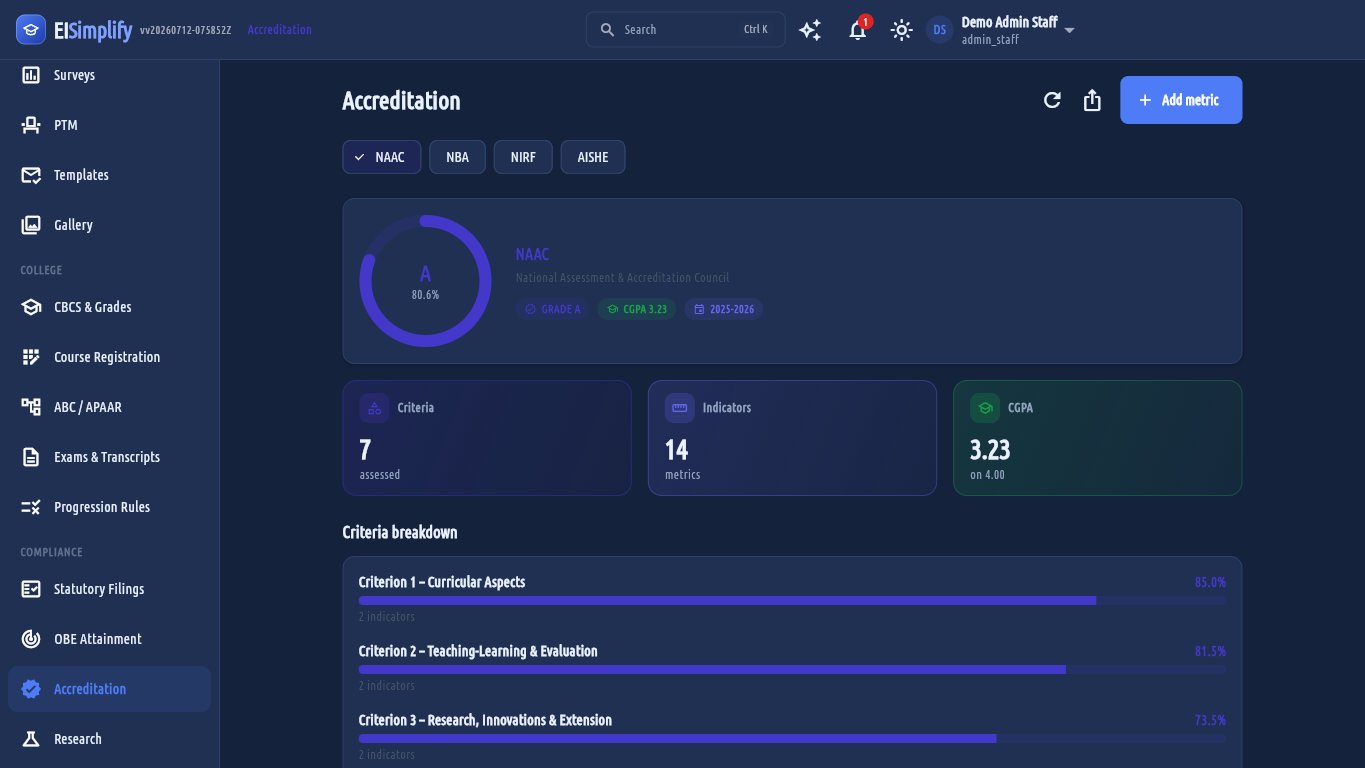
- Log student volunteer hours, camps, and certificates for NSS and NCC units and export accreditation summaries.
- Track sports, house competitions, cultural achievements, and club participation cleanly on Student 360°.
- Maintain strictly confidential campus medical infirmary visits, immunisation alerts, and emergency contacts under Health.
- Schedule pastoral counselling follow-ups with restricted role-gated visibility.
Operator Tip: Health and counselling notes are safeguarded as sensitive personal data tables under Workspace 6 privacy controls.
Screen Reference · Ch 17
Chapter 18
Workspace 06 · Governance & Board
Board of Trustees Vault, Committees, Resolutions, Policies, Risks & Capex
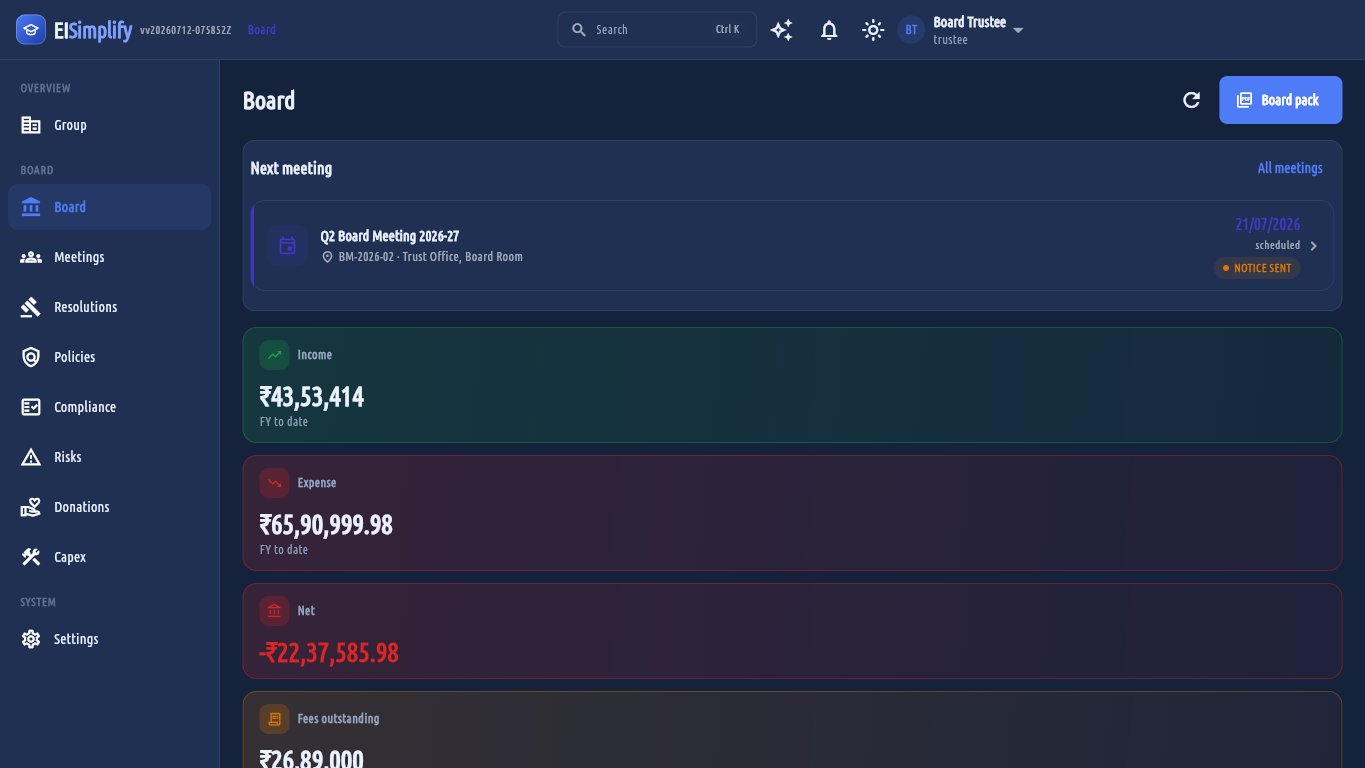
Give trustees fiduciary clarity with digital board packs, quorum attendance, signed resolutions, and infrastructure tracking.
Step-by-Step Operating Procedure
- Open Board Dashboard for trust-wide health across student enrolments, net surplus, statutory filings, and capital expenditure.
- Organise Academic, Finance, Audit, and Building committees, issue meeting packs, and record formal Minutes & Resolutions.
- Publish version-controlled institutional Policies (Child Safety, HR, Fee, IT) and track affiliation NOC renewals in Compliance.
- Oversee restricted scholarship Endowments, Alumni Donations, Risk Heatmaps, and construction Capex milestones.
Operator Tip: Trustees log into a clean fiduciary view without everyday classroom or clerical clutter.
Screen Reference · Ch 18
Chapter 19
Workspace 06 · DPDP Act 2023
DPDP Act 2023 & Rules 2025 Operations Guide (DPO, Notices & Breach SLA)
Operate full statutory privacy compliance across 24 personal data tables, 5 Eighth-Schedule languages, and 72-hour breach timers.
Step-by-Step Operating Procedure
- Configure your Data Protection Officer details (/api/privacy/dpo-info) and publish Eighth-Schedule privacy notices in English, Hindi, Tamil, Marathi, or Kannada.
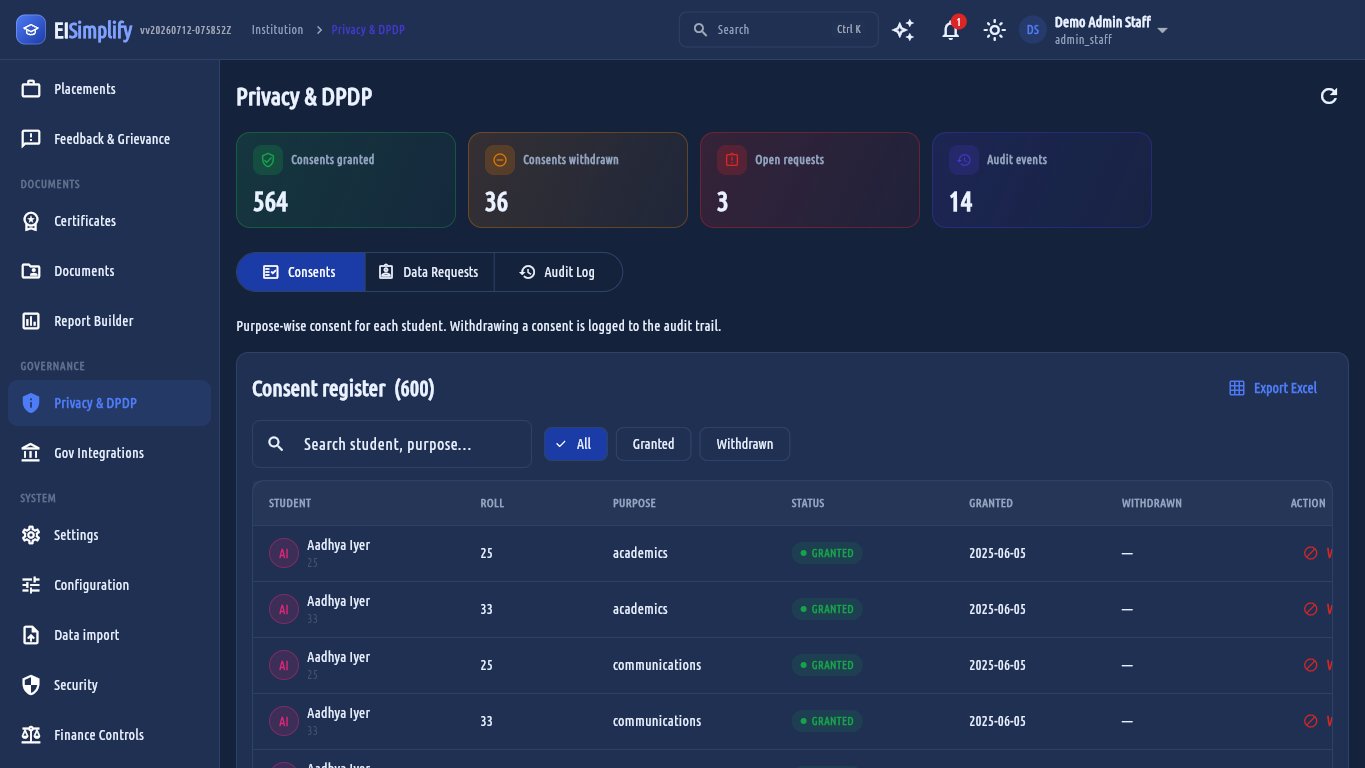
- Enforce Section 9 verifiable parental/guardian consent for all learners under 18 before optional analytics or media use.
- Toggle PII Masking anytime to mask Aadhaar, APAAR, PAN, bank account, and phone numbers in shared office views.
- Process Data Principal Rights requests (access summary, 24-table portability export, correction, erasure) and monitor the 72-hour DPB breach SLA countdown.
Operator Tip: Every export from a PII-bearing screen triggers a DPDP Section 8(4) accountability prompt and logs to the immutable audit trail.
Screen Reference · Ch 19
Chapter 20
AI, Mobile & Administration
Ask EI-Simplify AI, Native Android v3.0 App, Backups & Support SLA
Get instant ledger-backed answers, stay connected on Android, and rely on India-hosted encrypted backups.
Step-by-Step Operating Procedure
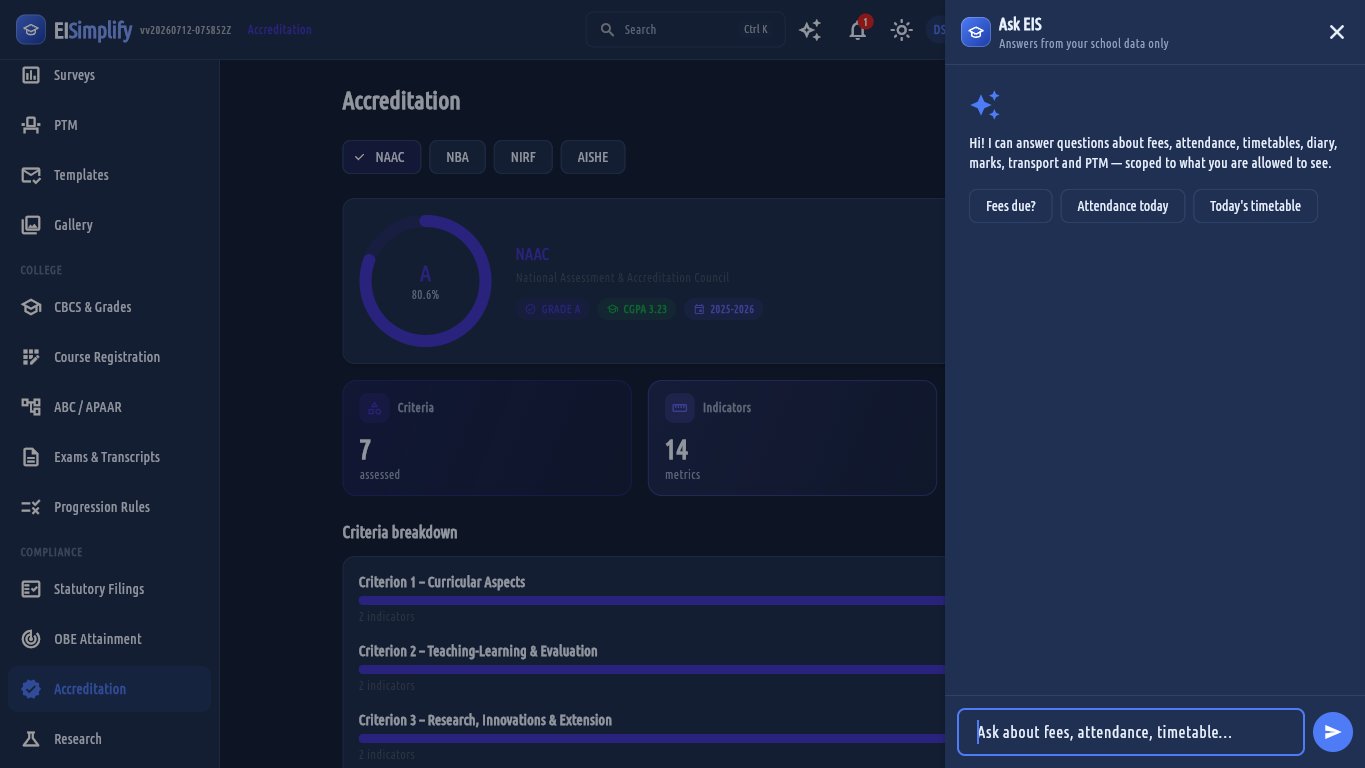
- Open Ask EI-Simplify to query enrolments, fee collections, attendance anomalies, and defaulters in plain English.
- Download the Native Android v3.0 APK directly from https://eisimplify.com/eisimplify.apk for faculty, parents, students, and bus staff.
- All institutional databases run on ISO 27001 India infrastructure with daily encrypted 30-day rolling backups and JWT + TOTP security.
- Need help? Starter receives Community support, Standard 24h email, Premium 4h phone/WhatsApp, and Enterprise 1h emergency SLA via support@eisimplify.com.
Operator Tip: Always quote your Build Version badge shown in Settings when requesting priority assistance.
Screen Reference · Ch 20